iPhones

Updated on 2 April 2026
2 April 2026
6 mins read

Thomas Hobbs
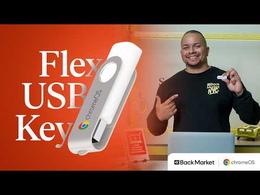
Back Market and Google have partnered to make ChromeOS Flex USBs, which extend the life of obsolete devices, more widely accessible. Find out whether the ChromeOS Flex might be right for you.
Back Market has partnered with Google ChromeOS Flex to give your old laptop a second life. With Windows 10 support ending last October, up to 400 million devices are at risk of becoming e-waste; not because they're broken, but simply because they're considered "too old."
But if you have an eligible device, ChromeOS Flex can be a complete game-changer and keep your old devices running, with Back Market now selling USBs that come with this operating system. The following guide will help you to understand whether ChromeOS Flex is the right fit for you; how to install it using your USB key; and how to get the most out of it day-to-day.

What's in it for you.
For your wallet: | For your device: | For the planet: |
|---|---|---|
• ChromeOS Flex is free. You can use your own USB stick or purchase one from Back Market for easier installation ($3/€3/£3), and there’s no hidden costs or subscriptions • No need to buy expensive new hardware • Extends your device's lifespan | • Fast boot times (under 10 seconds for most devices) • Automatic security updates • Runs smoothly on older hardware (even devices from 2010) • Built-in virus protection | • Prevents functional devices from becoming e-waste • Reduces the environmental impact of manufacturing new laptops • Part of a global Slow Tech movement fighting against planned obsolescence |

What ChromeOS Flex is great for:
ChromeOS Flex is designed to amplify everything you do online, every day.
✅ What it does well:
Web browsing, fast and secure
Email & video calls, Gmail, Outlook, Google Meet, Zoom
Document work, Google Docs, Sheets, Microsoft 365 online
Streaming, Netflix, YouTube, Spotify etc
Education, online learning, research, writing
Light productivity, online photo editing, project management
❌ What it's not built for
Heavy gaming (no Windows games)
Professional video/photo editing (no Adobe or Final Cut Pro)
Windows-only software (.exe and Android apps won't run–although ChromeOS Flex supports Android VPN aApplications.)
Primarily local file storage (it's cloud-first by design, which means ChromeOS Flex is best used with the internet; unless you choose to store files locally, your files live online rather than on the laptop's hard drive.)
Bottom line: If you mostly browse the web, write documents, stream content, and stay connected, ChromeOS Flex is an excellent fit. If you rely on specific Windows software for professional work, however, it may not fully replace your current setup.
Who is ChromeOS Flex for?
Students who need a reliable, fast device for studying and web-based tools
Remote workers who live in Google Workspace or Microsoft 365 online
Families looking to give an old laptop a new, secure life
Anyone whose Windows computer has become slow or unsupported
You can find more information about BackMarket and Google’s partnership and how to sign up here.
A step by step guide to installation.
(VERY IMPORTANT) Check if your device is compatible - Most laptops from 2010 onwards are compatible. 👉Check the certified models list (here for the US and here for the UK). Certified models are fully guaranteed by Google; others may work but without any guarantee.
🧠 “Guaranteed” means that Google has tested these specific models to ensure everything (Wi-Fi, sound, etc.) works perfectly. On non-certified models, sometimes the core functionality works, but certain features–like sound–may be unreliable.
Back up your data first ⚠️ - Installing ChromeOS Flex will permanently erase everything on your device. ⚠️ Save important files to an external drive or cloud storage, and note any passwords not already saved in Chrome.
Plug in the USB key - Make sure your laptop is fully powered off (not sleeping) before inserting the key.
Boot from the USB key - Turn on your laptop and repeatedly press your boot key: F12 (Dell, Lenovo), F9 (HP), F2 (Acer), Del (Asus), Option (Intel-based Mac), Volume Down (Surface). Can't find yours? Search "[device name] boot key" online. Then select your USB drive from the boot menu. (💡 Jargon Decoder: The “boot menu” is just a list that pops up to ask the computer: "Should I start from the Hard Drive or the USB stick?" The “boot key” is just the button you press to tell your computer, “hey, bring up the boot menu!”)
Try before you install (optional) - On the Welcome screen, click Get started > Try it first. Test your Wi-Fi and keyboard. Ready to commit? Sign out and click Install ChromeOS Flex.
Install - Click Get started > Install ChromeOS Flex > confirm the erasure warning > wait 10-15 minutes > remove the USB key when done.
Sign in - Use your Google account. If you were using Chrome before, your bookmarks and Chrome-saved passwords will sync automatically.
Bonus (optional)- Reuse the USB key for storage - Use the free Chromebook Recovery Utility Chrome extension: Settings > Erase recovery media. 💡 Don't use Windows to format it, the storage may appear smaller than it is.
Your desktop at a glance
When you first log in, you'll see a clean desktop with a taskbar at the bottom, familiar if you've used Windows or Mac, but lighter and faster.
Your main tools:
Chrome Browser, your gateway to everything: documents, email, streaming, web apps
File Manager, access downloads, external drives, and Google Drive
Settings, Wi-Fi, accounts, display, accessibility
Launcher, click the circle icon (bottom left) to browse all your apps
Embrace the cloud ChromeOS Flex is designed around cloud storage. Use Google Drive, Dropbox, or OneDrive to keep files accessible from anywhere, and free up local space.
2. Use web apps Most popular tools have excellent web versions that work perfectly: Canva (design), Notion (notes), Trello (project management), Microsoft Office 365 (online), and many more.
3. Connect external devices USB drives, external hard drives, mice, and most modern printers work by simply plugging them in.
4. Updates happen automatically ChromeOS Flex updates itself in the background. You'll always have the latest security patches without doing anything.
5. Manage your files smartly Your device has a local storage limit. Regularly move files to Google Drive or an external drive to keep things running smoothly.
Having trouble installing? → See our ChromeOS Flex Troubleshooting Guide (link to Document 3 below)
Questions about ChromeOS Flex? → Official Google FAQ
Want to connect with other users? → ChromeOS Flex Community
Bought your USB key from Back Market and can’t find a solution to your problem using the FAQs above? → Contact our customer care team through your Back Market account. [link to Back Market support]
Thomas Hobbs is a UK-based freelance journalist who has written for titles including the Guardian, Financial Times, Telegraph, Pitchfork, New Statesman, Stereogum, BBC Culture and many others. He has interviewed everyone from Nas to Usher, Weyes Blood, and Joe Hisaishi, while collecting and playing vintage video games is one of his favourite past times.